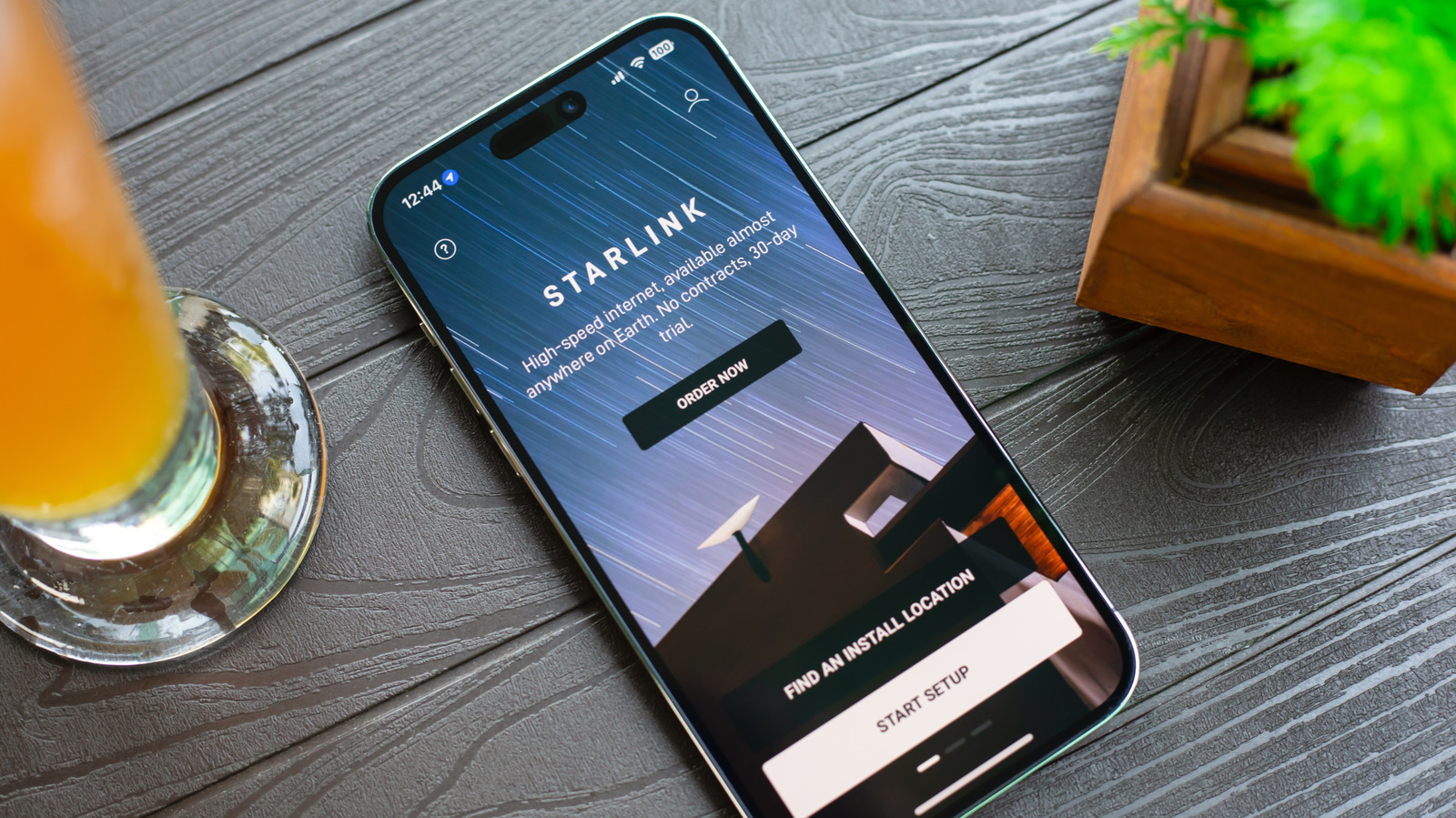
Starlink app setting allows users to split Wi-Fi networks
AI-assisted summary based on reporting fromEngadget.About our reporting
Key Points
- •Starlink users can split their Wi-Fi into separate 2.4GHz and 5GHz networks via the app.
- •The 5GHz band offers higher potential speeds and more non-overlapping channels than the 2.4GHz band.
- •Some low-power smart devices are restricted to the 2.4GHz frequency band.
Listen to this story (Audio briefing)
Starlink users have the option to modify their home internet setup by splitting their Wi-Fi signal into two distinct frequency bands. By accessing the Starlink app, customers can navigate to the Add Network section and toggle the Split Network feature. This process requires users to name the two new networks, with the suggestion to include labels such as 2.4 and 5 to distinguish between the connections. Most modern routers, including those provided by Starlink, operate as dual-band systems. While Starlink hardware may feature Wi-Fi 7, it does not currently support the 6GHz frequency band. The primary reason for separating these bands is that the 5GHz frequency is inherently faster than the 2.4GHz frequency. Shorter wavelengths in the 5GHz band provide more non-overlapping channels, which helps reduce congestion and interference. For devices capable of connecting to 5GHz, forcing them onto this band can lead to improved speeds. However, performance results will vary based on the specific router, the distance between devices, and the types of hardware connected to the network. Additionally, splitting the network can assist with device management. Many low-power smart home products, such as LED light bulbs, are designed to function exclusively on the 2.4GHz band. When these devices share a unified network with high-bandwidth hardware, they may face unnecessary congestion. By separating the bands, users can ensure that 2.4GHz-only devices do not compete for airtime with equipment that could otherwise utilize the 5GHz band. This adjustment provides a method for users to manage their local network traffic more effectively.
Analysis: This setting allows users to manually manage network congestion by separating high-speed devices from those that only support lower frequencies. It provides a technical solution for homeowners to optimize their local wireless environment without requiring additional hardware.
Related Stories in AI & Tech
More in AI & Tech →
Smartphone battery life: how to charge your device
Smartphone batteries are lithium-ion and degrade over time based on charging habits and temperature.

Mechanical vs. membrane keyboards: A comparison
Membrane keyboards use a flexible layer of plastic and rubber to register keystrokes.
Smart TV lifespan and how long displays last
On average, a new smart TV can last from seven to 10 years.
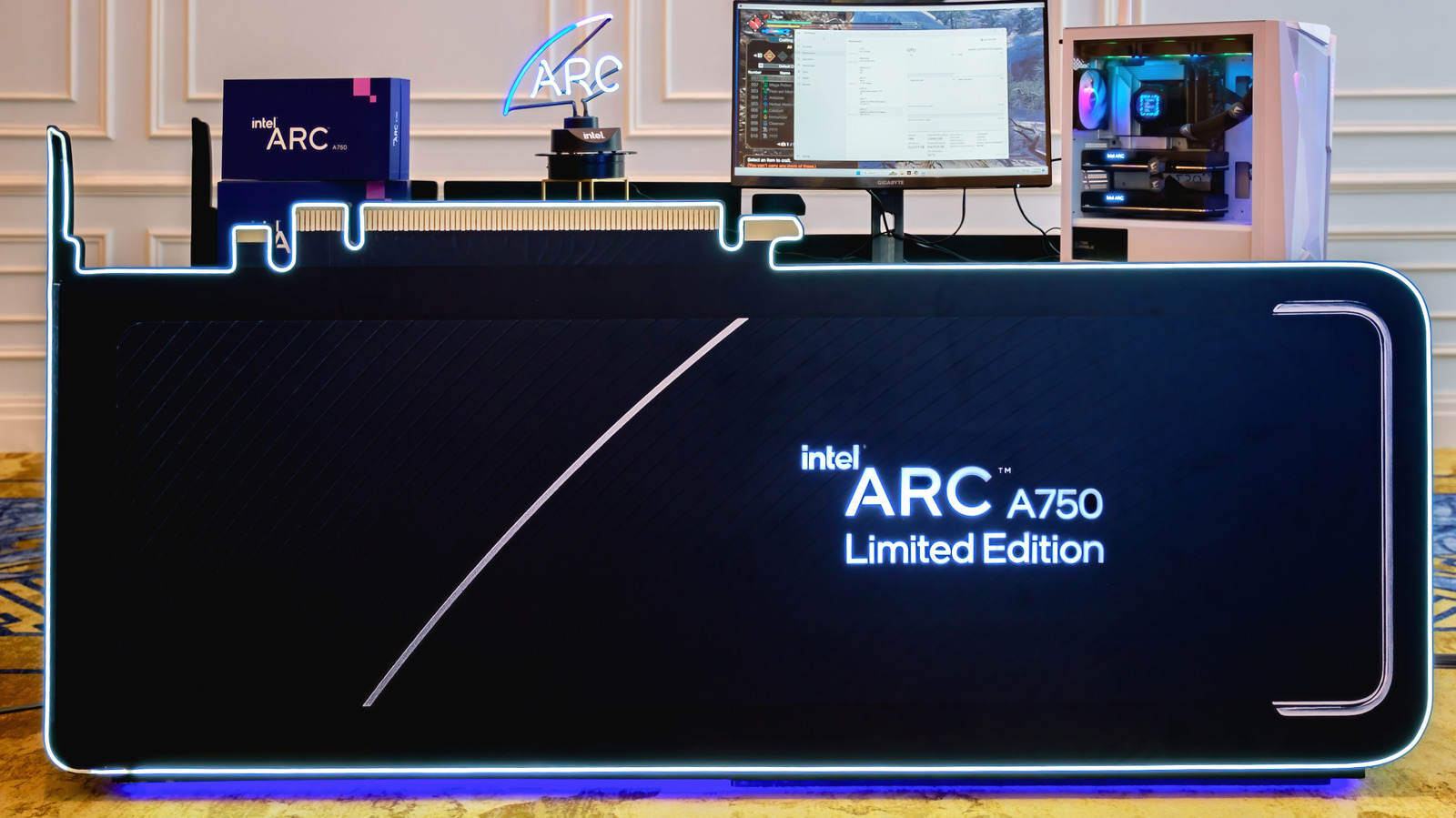
Intel Arc GPUs: Are they still worth buying in 2026?
Intel launched its Arc GPU lineup in 2022, initially facing criticism for poor drivers and system instabilities.
Old iPads can replace costly smart gadgets
An old iPad can replace expensive gadgets costing between $150 and $300.
PlayStation 5 Pro PC build cost and comparison
Sony's PlayStation 5 Pro costs up to $900 before add-ons.
Want to Work Remotely for US & Global Tech Companies?
400+ verified remote positions in AI engineering, cloud development, design, and executive leadership are hiring now worldwide. Fast-track direct application with guaranteed employer delivery.
Subscribe to Our Daily AI & Market Briefing
Get our curated daily news brief, clear market takeaways, and essential video dispatches delivered directly to your inbox.