DISM utility fixes damaged Windows system files
AI-assisted summary based on reporting fromEngadget.About our reporting

Key Points
- •Windows relies on important system files to run applications, install updates, and perform everyday tasks.
- •Deployment Image Servicing and Management is a built-in repair utility that can scan system images for corrupt files.
- •The utility includes three specific commands named CheckHealth, ScanHealth, and RestoreHealth.
Listen to this story (Audio briefing)
Windows relies on a collection of important system files to perform everyday computing tasks, install updates, and run applications. When these files become missing or damaged, the system may exhibit unexpected behavior, experience freezes, or encounter errors. Standard troubleshooting steps or restarting the computer are sometimes insufficient for restoring damaged files, prompting Windows to provide a built-in repair utility known as Deployment Image Servicing and Management.
DISM functions as a command line tool designed to scan Windows system images for corrupt files and attempt repairs. Three specific utility commands achieve this objective: CheckHealth, ScanHealth, and RestoreHealth. Users can execute these commands in either PowerShell or the command prompt, although both command-line interfaces require administrator privileges to perform system-level changes. The tool exclusively focuses on system files, leaving personal files completely untouched.
Every command follows a specific syntax beginning with DISM /Online /Cleanup-Image. The components following DISM function as command-line options. The /Online option directs DISM to act on the currently running installation of Windows, while /Cleanup-Image executes recovery operations on the chosen installation.
The initial command is DISM /Online /Cleanup-Image /CheckHealth. This command checks whether Windows has already flagged corrupt system files and determines if the corruption can be repaired. Because it requires very little time to finish, this serves as the recommended first step when investigating file corruption.
The following command is DISM /Online /Cleanup-Image /ScanHealth, which operates differently from the CheckHealth option. Rather than checking previously flagged files, ScanHealth performs a fresh scan of system files and reports the findings. Although this operation may require several minutes to complete, it delivers a new report regarding the health of the component store.
Analysis: Maintaining healthy system files is necessary for the proper execution of applications and updates on a Windows computer. Built-in tools like DISM provide users with a method to detect and address file corruption without affecting personal data.
Related Stories in AI & Tech
More in AI & Tech →
Smartphone battery life: how to charge your device
Smartphone batteries are lithium-ion and degrade over time based on charging habits and temperature.
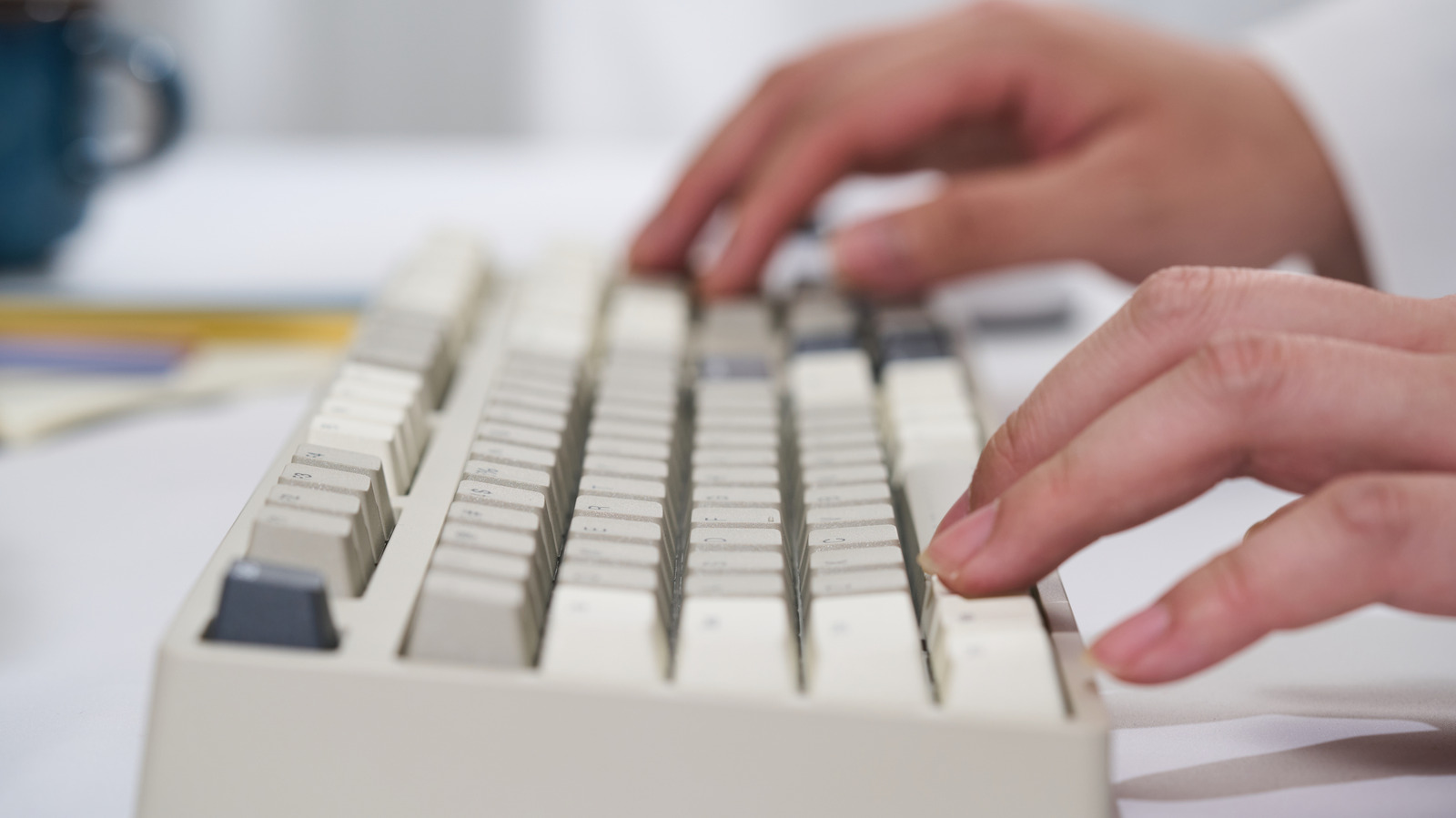
Mechanical vs. membrane keyboards: A comparison
Membrane keyboards use a flexible layer of plastic and rubber to register keystrokes.

Smart TV lifespan and how long displays last
On average, a new smart TV can last from seven to 10 years.

Intel Arc GPUs: Are they still worth buying in 2026?
Intel launched its Arc GPU lineup in 2022, initially facing criticism for poor drivers and system instabilities.

Old iPads can replace costly smart gadgets
An old iPad can replace expensive gadgets costing between $150 and $300.

PlayStation 5 Pro PC build cost and comparison
Sony's PlayStation 5 Pro costs up to $900 before add-ons.
Want to Work Remotely for US & Global Tech Companies?
400+ verified remote positions in AI engineering, cloud development, design, and executive leadership are hiring now worldwide. Fast-track direct application with guaranteed employer delivery.
Subscribe to Our Daily AI & Market Briefing
Get our curated daily news brief, clear market takeaways, and essential video dispatches delivered directly to your inbox.